
Goodly Trials formation planner
Why plan your company on this board?
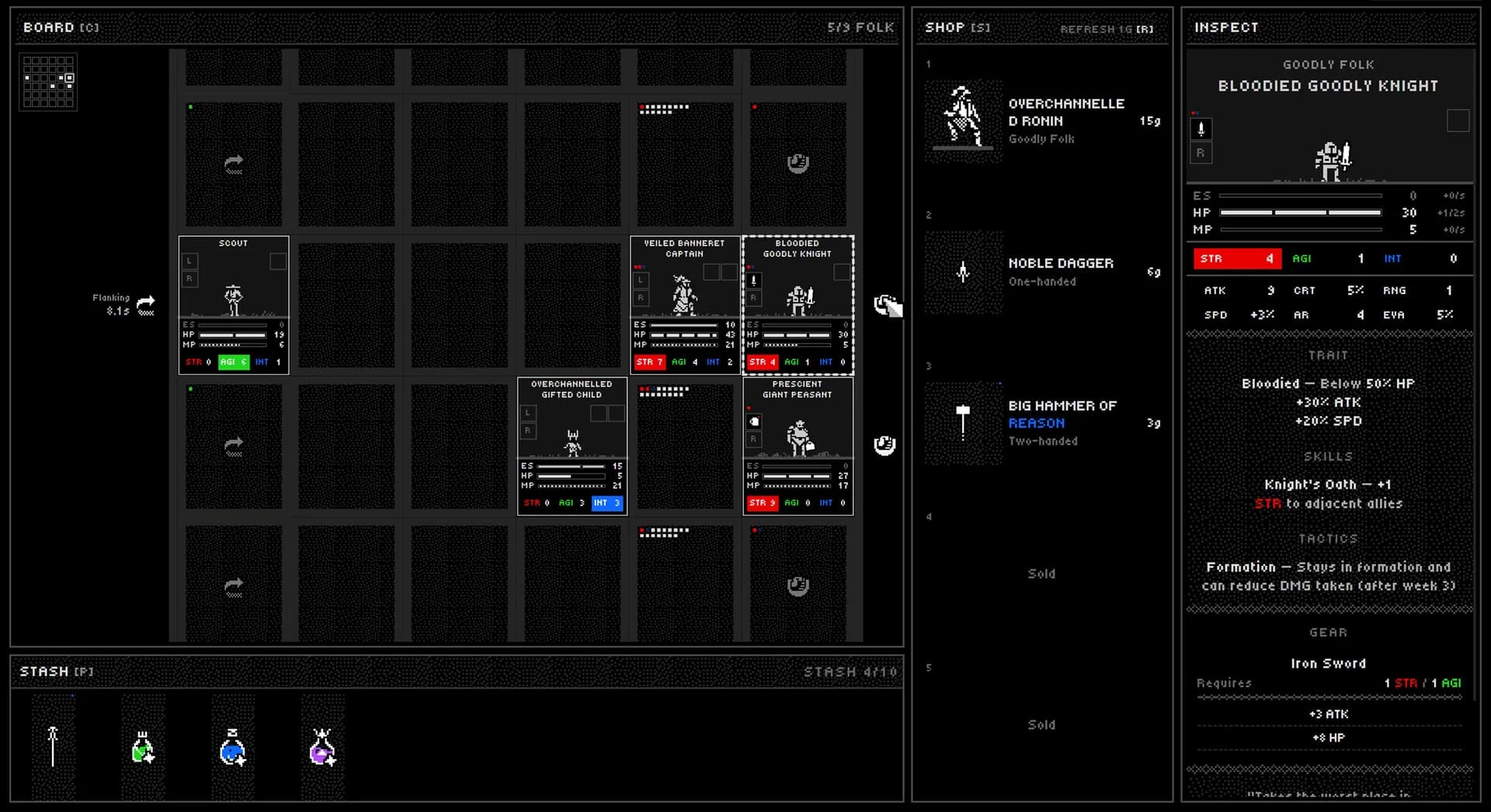
A formation is easier to evaluate when you can see the leader, followers, open cells, and equipment together. This builder turns a written build idea into a board you can inspect and revise before playing, without presenting any arrangement as a guaranteed or “best” result.
Built around the game’s board language
The planning surface uses a formation grid, unit cards, a leader slot, and a separate Archive, so the task feels closer to preparing a company than filling out a generic form.
Useful limits are checked while you plan
The board enforces active cells, one unit per cell, leader and faction requirements, follower limits, and known equipment capacity. When an action is blocked, the Archive shows the reason.
Cards and guesses stay separate
Leader, unit, and gear details that can be checked are shown inside the planner. When a card is incomplete, the missing information stays clearly marked.
Drag when convenient; click for long moves
Desktop players can drag cards directly. If the destination is farther down the board, click a card to carry it, scroll normally, then click the target—no precision drag across the whole page is required.
Your working plan remains editable
Units and equipment can be moved or removed, notes can be revised, and the plan saves locally in the current browser. You can return to the same device and continue adjusting it.
Planning support, not a combat simulator
The builder helps organize a company and surface rule conflicts. It does not calculate battle outcomes, promise win rates, or replace testing the formation in the live game.
Five-step workflow
How to use the Goodly Trials Company Builder
Start with the rules, then work from leader to followers and equipment. This order prevents most blocked placements and keeps the card list relevant to the company you are building.
- 01
Set the rules for your run
Choose the game mode and trial week first. The week controls which board cells are active, while the selected ruleset determines the follower limit used by the planner.
- 02
Choose a company leader
Open Leaders in the card list and drag a leader to the leader slot, or click the leader once. In non-multiplayer modes, the list then narrows to followers from that leader’s faction.
- 03
Place followers on active cells
Drag units from the card list onto open cells. For a long move, click a unit, scroll normally, and click the target cell. Locked cards explain whether a leader, faction match, open cell, or roster space is required.
- 04
Assign gear and trinkets
Switch to Gear and drag an item onto a compatible unit card. Equipment is limited by that unit’s known Gear and Trinket capacity, and equipped items can be moved or removed.
- 05
Inspect, adjust, and record the plan
Hover or focus a card to review its available details, move units between open cells, and add notes. The current plan saves automatically on this device.
Practical tips
Make the board easier to work with
- Choose the week before filling the board. Changing it later may alter which positions are active.
- Check card details before placing. The board stays clear while the list gives you the information you need.
- Use click-to-carry for distant cells. It is the reliable alternative when a long drag would require scrolling.
- Remove with the × control. Units, leaders, and equipped items can all be cleared without resetting the entire company.
- Record uncertainties in Player notes. Treat the board as a draft that can be checked against the live game.
Common questions
Goodly Trials Builder FAQ
Why can’t I place a unit in every cell?
Available cells depend on the selected trial week. A cell can also reject a drop when it is occupied or when the company has reached its current follower limit.
Why is a unit or item blocked in the list?
It may require a leader, a matching faction, an open follower slot, a unit already on the board, or compatible Gear or Trinket capacity. The disabled card shows why.
Does the Builder save or share my formation?
The plan saves automatically in the current browser. Use Copy share link to transfer the current draft to another browser or send it to another player; the link imports an editable copy and does not publish a public build.
Where can I check the game details?
Use the unit pages, gear pages, and player guides when you want to check the cards behind a plan.